> ## Documentation Index
> Fetch the complete documentation index at: https://docs.bymiles.ai/llms.txt
> Use this file to discover all available pages before exploring further.
# Choose how to start in WordPress
> Pick the right starting path when you open Miles in the WordPress plugin.
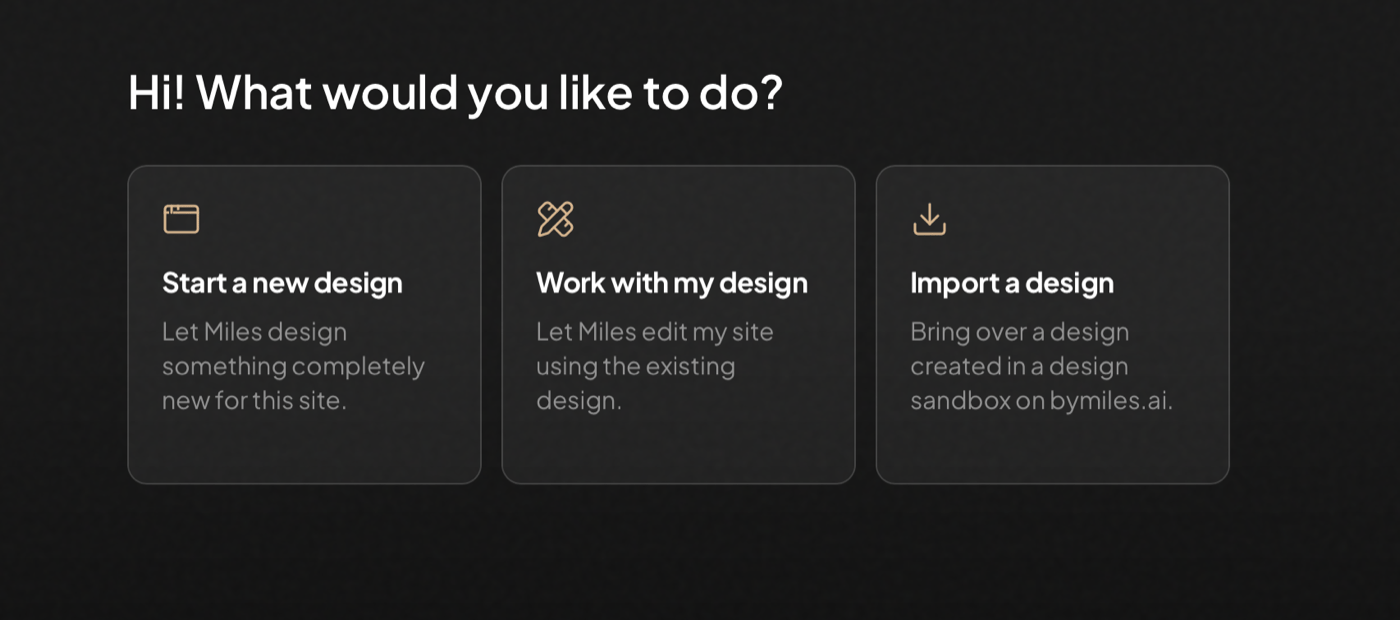
After you connect the Miles plugin, its first screen asks what you want to do. The option you choose determines whether Miles works with the current design, opens a separate design sandbox, or imports a design you already created.
 | Option | Choose it when | What happens next |
| ----------------------- | --------------------------------------------------------------------------------------- | ---------------------------------------------------------------------- |
| **Start a new design** | You want Miles to create a new visual direction instead of following the current design | Miles asks what you are designing and where the new work should happen |
| **Work with my design** | You want to edit this WordPress site while keeping its existing visual direction | Miles opens the editor for the current site |
| **Import a design** | You already have a design sandbox on bymiles.ai that you want to bring into WordPress | Miles lets you choose a design and how it should be imported |
## Start a new design
This path is for new visual directions. Miles first asks whether the design is for a new site or based on an existing one.
| Option | Choose it when | What happens next |
| ----------------------- | --------------------------------------------------------------------------------------- | ---------------------------------------------------------------------- |
| **Start a new design** | You want Miles to create a new visual direction instead of following the current design | Miles asks what you are designing and where the new work should happen |
| **Work with my design** | You want to edit this WordPress site while keeping its existing visual direction | Miles opens the editor for the current site |
| **Import a design** | You already have a design sandbox on bymiles.ai that you want to bring into WordPress | Miles lets you choose a design and how it should be imported |
## Start a new design
This path is for new visual directions. Miles first asks whether the design is for a new site or based on an existing one.
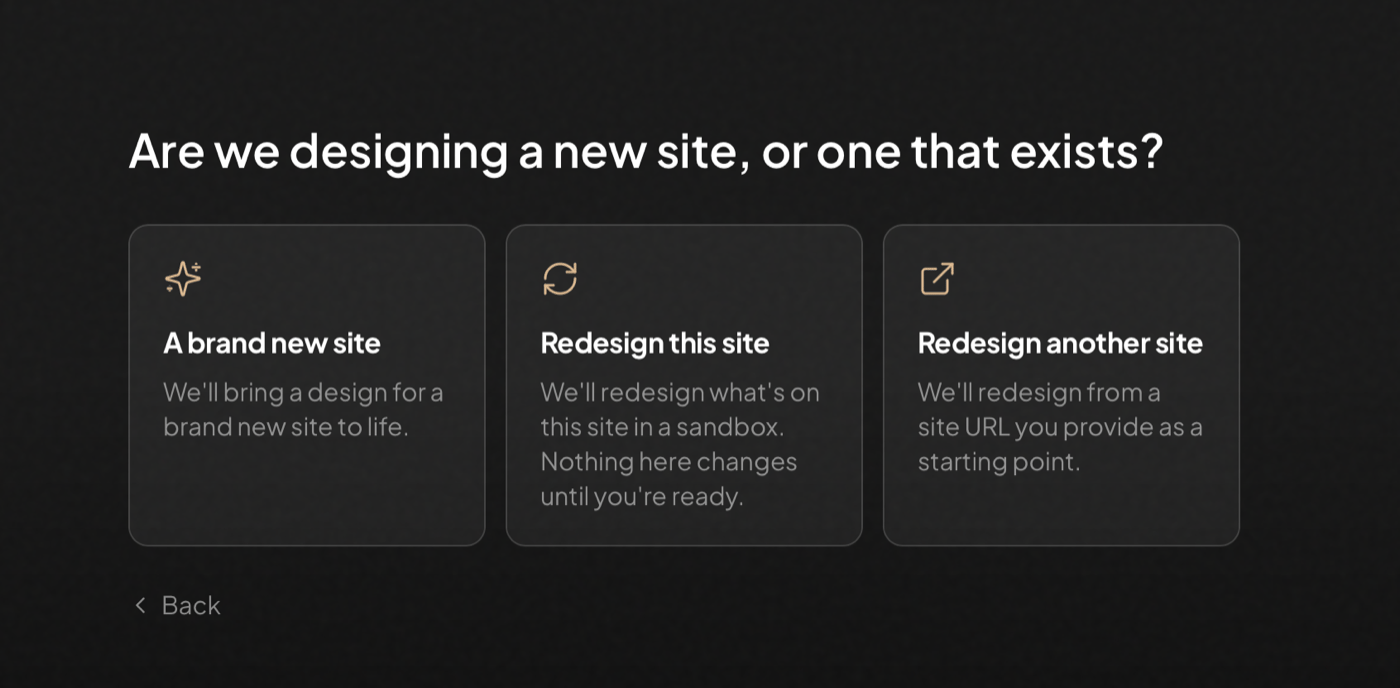 * **A brand new site** starts without an existing site as its source.
* **Redesign this site** uses the current WordPress site as the starting point and automatically creates the redesign in a sandbox. Nothing on the current site changes until you import the result.
* **Redesign another site** asks for the other site's public URL and uses it as a starting point.
For a brand-new site or a redesign of another URL, Miles also asks where it should start creating:
* **In a sandbox** opens a separate design sandbox on bymiles.ai. Nothing on this WordPress site changes until you choose to import the design.
* **On this site** builds directly on the current WordPress site. Changes are published on the site as Miles makes them.
Creating a design sandbox uses the Miles account connected to the site, so a WordPress administrator must choose that option.
## Work with my design
Choose **Work with my design** for changes that should follow the site's existing colors, typography, spacing, templates, and visual language.
This is the right path for editing pages, creating pages and sections, refining copy or images, and adding functionality to the current site. It requires a block theme or a static homepage. If neither is available, the option appears disabled.
Read [Work with your existing design](/editing-a-site/starting-points) before changing a site that already contains important work.
## Import a design
Choose **Import a design** when the design already exists in a design sandbox on bymiles.ai. After you select it, Miles asks whether to install it as a new theme or replace the WordPress site with a complete sandbox clone.
Those options have very different effects. Read [Exporting and importing a site](/building-new-sites/exporting-a-site) before continuing.
If you do not have a design yet, the import screen can create a new design sandbox for you. Design import is not currently available for team accounts.
## Returning to work in progress
When a design sandbox was started from this WordPress site, the plugin remembers it. The starting screen offers **Keep designing** or **Import a design** when you return.
After a design is installed as a theme, activate it from **Appearance** when you are ready. Once it is active, choose **Work with my design** to continue editing it with Miles.
* **A brand new site** starts without an existing site as its source.
* **Redesign this site** uses the current WordPress site as the starting point and automatically creates the redesign in a sandbox. Nothing on the current site changes until you import the result.
* **Redesign another site** asks for the other site's public URL and uses it as a starting point.
For a brand-new site or a redesign of another URL, Miles also asks where it should start creating:
* **In a sandbox** opens a separate design sandbox on bymiles.ai. Nothing on this WordPress site changes until you choose to import the design.
* **On this site** builds directly on the current WordPress site. Changes are published on the site as Miles makes them.
Creating a design sandbox uses the Miles account connected to the site, so a WordPress administrator must choose that option.
## Work with my design
Choose **Work with my design** for changes that should follow the site's existing colors, typography, spacing, templates, and visual language.
This is the right path for editing pages, creating pages and sections, refining copy or images, and adding functionality to the current site. It requires a block theme or a static homepage. If neither is available, the option appears disabled.
Read [Work with your existing design](/editing-a-site/starting-points) before changing a site that already contains important work.
## Import a design
Choose **Import a design** when the design already exists in a design sandbox on bymiles.ai. After you select it, Miles asks whether to install it as a new theme or replace the WordPress site with a complete sandbox clone.
Those options have very different effects. Read [Exporting and importing a site](/building-new-sites/exporting-a-site) before continuing.
If you do not have a design yet, the import screen can create a new design sandbox for you. Design import is not currently available for team accounts.
## Returning to work in progress
When a design sandbox was started from this WordPress site, the plugin remembers it. The starting screen offers **Keep designing** or **Import a design** when you return.
After a design is installed as a theme, activate it from **Appearance** when you are ready. Once it is active, choose **Work with my design** to continue editing it with Miles.